
Install guide · about 5 minutes
How to add an AI chat assistant to your Whop
Whop store pages can't run third-party scripts, so use your hosted Deskdove chat link inside your whop with the Website Embed app.
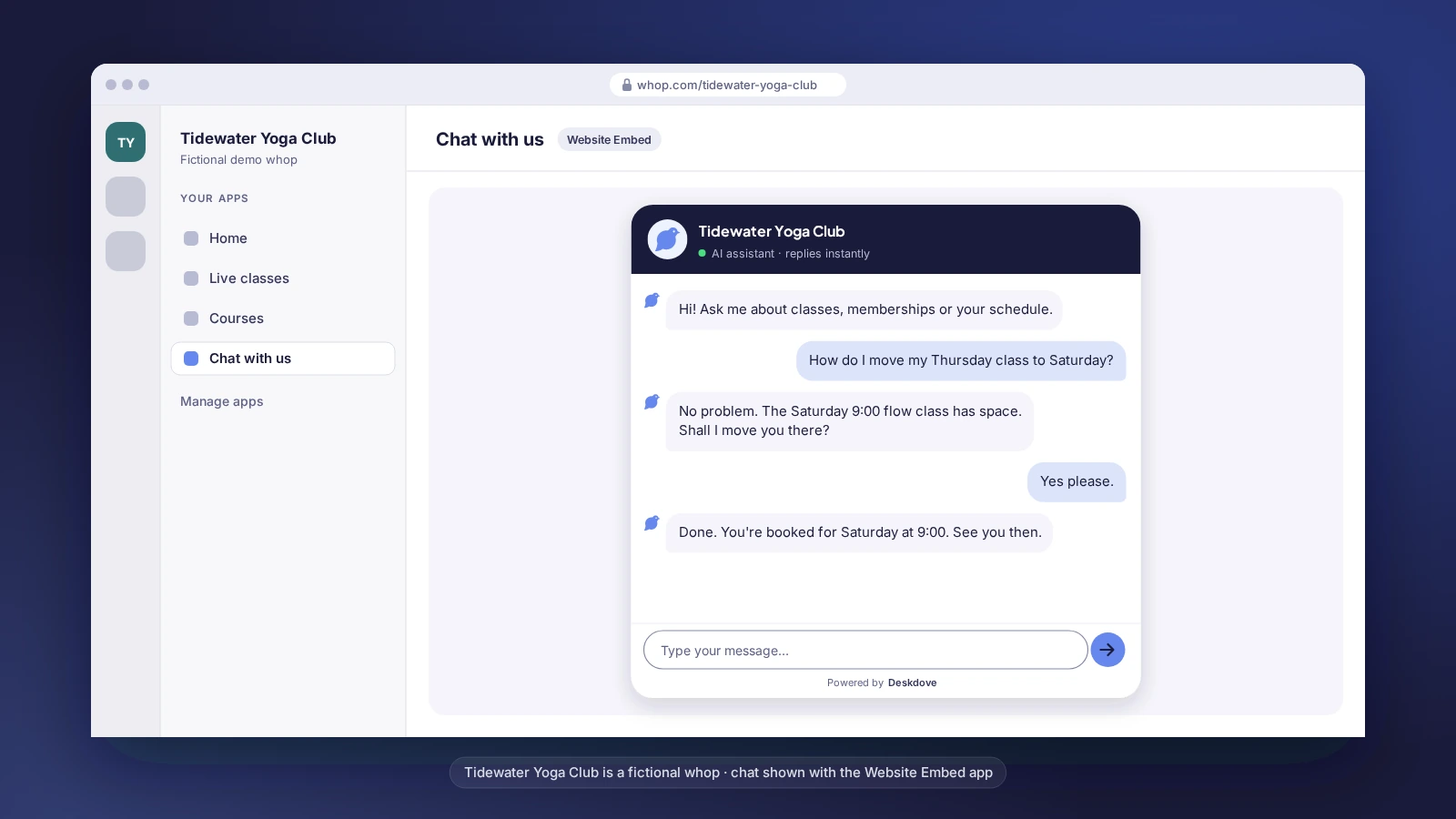
Whop can't run third-party scripts on your whop or store page. The store page editor only has your name, headline, description, logo, gallery images or video and category, with no custom code. So instead of the snippet, use your hosted chat link: a full-page version of your Deskdove chat.
Before you start: Whop's Website Embed app shows a web page inside your whop for members who have access. It doesn't add a floating chat button to your public store page.
Copy your hosted chat link
Copy the link below. It opens your Deskdove chat as its own page.
https://deskdove.com/embed/your-businessThis is a placeholder. Sign up free to get your snippet
Add the Website Embed app
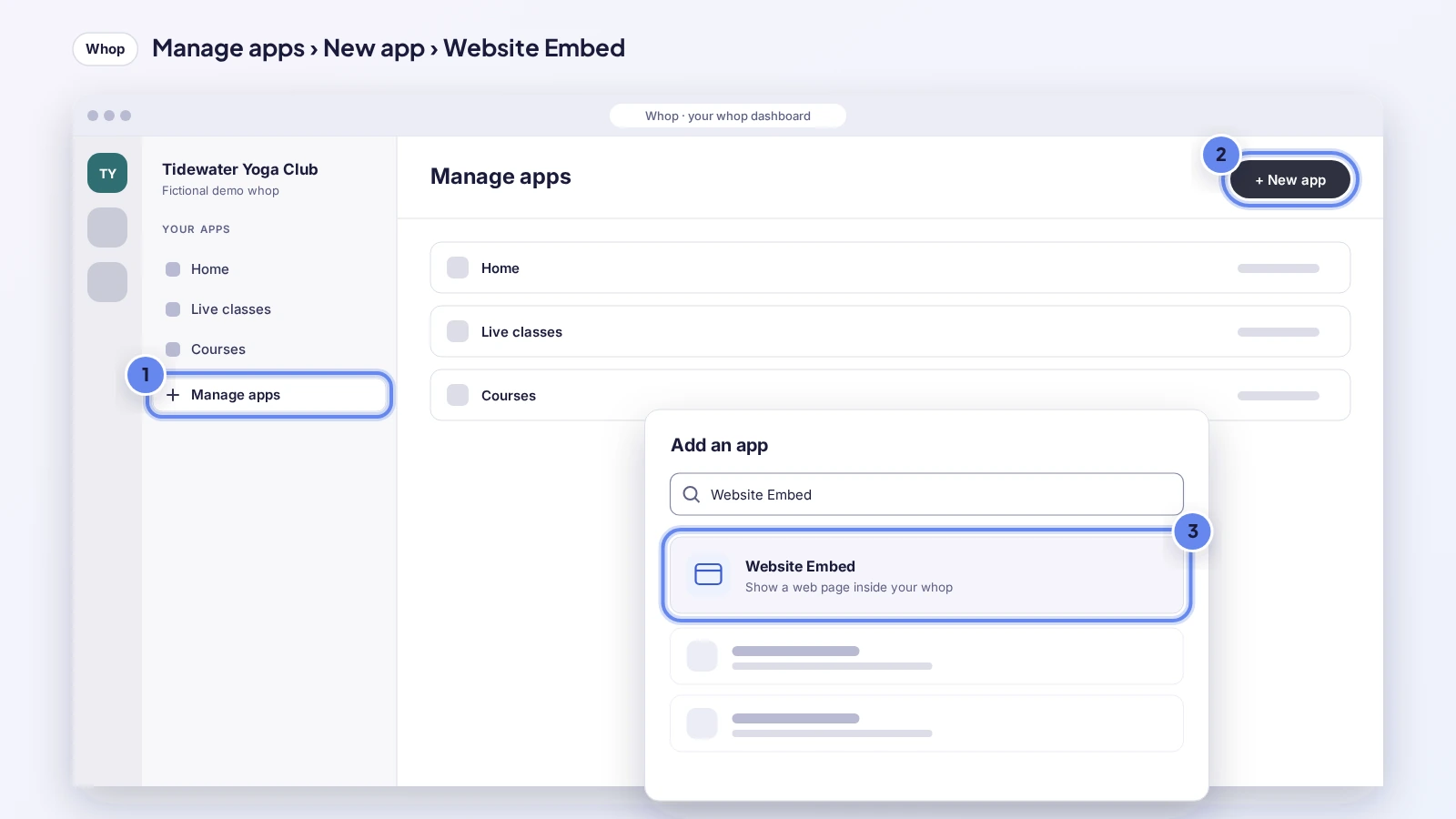
In your whop, click Manage apps in the Your apps section, then New app. Search for Website Embed, click it and choose Hidden (draft) for now.
Paste your chat link
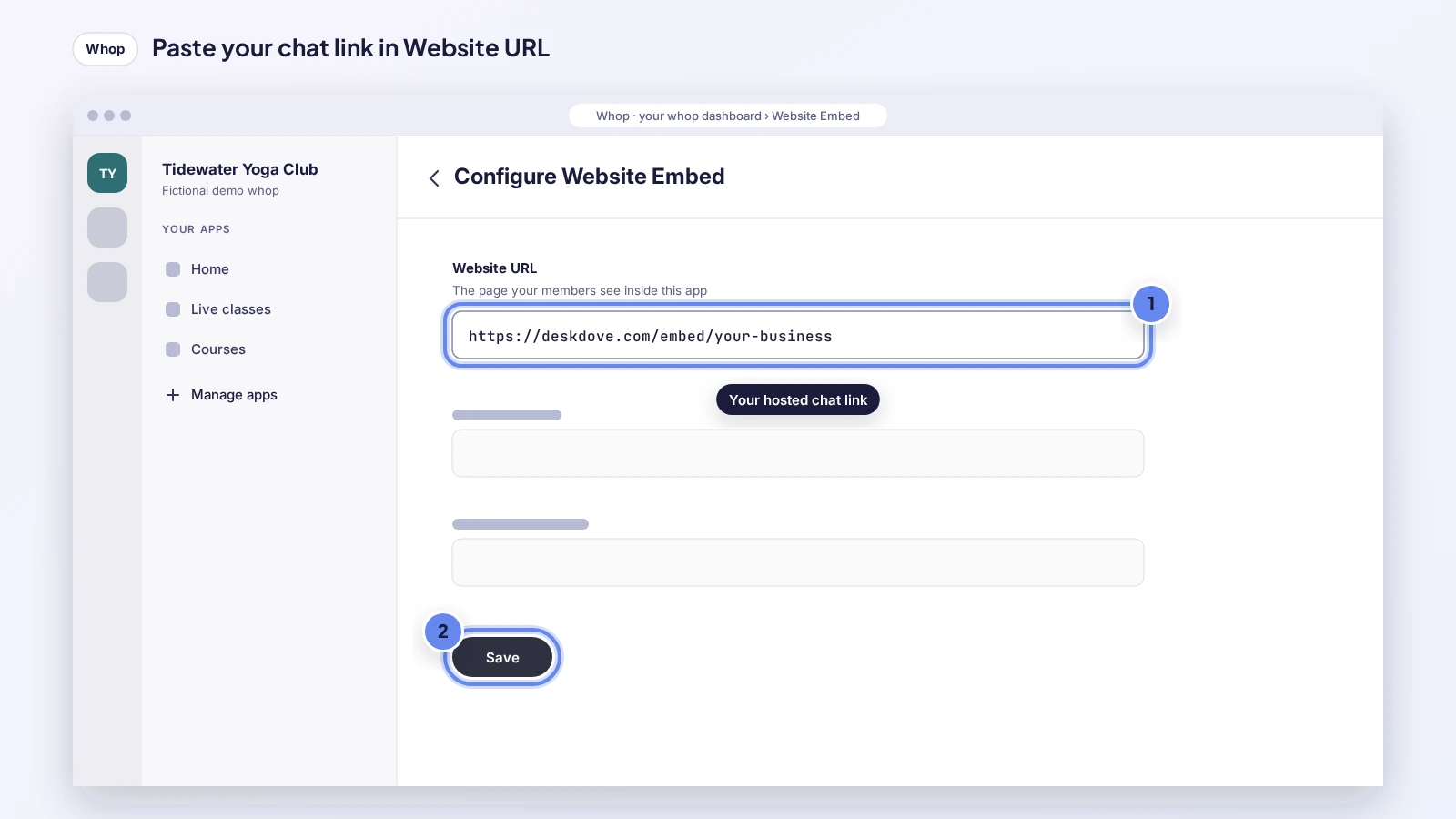
Click Configure Website Embed at the top left of the app, paste your chat link into the Website URL field and click Save.
Make it visible
Click App settings for the Website Embed app, choose Visible under Visibility and click Save. Rename it "Chat with us" there if you like.
Link it from anywhere else
You can also share the same link wherever you talk to buyers, such as your own website, social bios or emails.
Check it's working
Open your whop as a member
Open your whop in a private window, signed in as a member, and open the app you added.
Send a test message
Your chat loads in the app. Send a message, such as "Hi, this is a test".
See it in your Inbox
Open Inbox in your Deskdove portal. Your test chat shows up there straight away.
If your business also has its own website, install the snippet there too (pick its platform above) for the floating chat button.
Rather we did it? Book a free assisted install and we'll set it up with you on a short call.
Based on Whop's own help pages: Whop Docs: Design your store page · Whop: How to use the Website Embed app. Menus can change; tell us if one has moved.
Get your own snippet
Your portal has a ready-to-paste snippet with your business already filled in, plus these steps.
Sign up free to get your snippet