
Install guide · about 5 minutes
How to add an AI chat widget to WordPress
Add the Deskdove AI chat assistant to WordPress with the free WPCode (Insert Headers and Footers) plugin's Footer box. No theme edits needed.
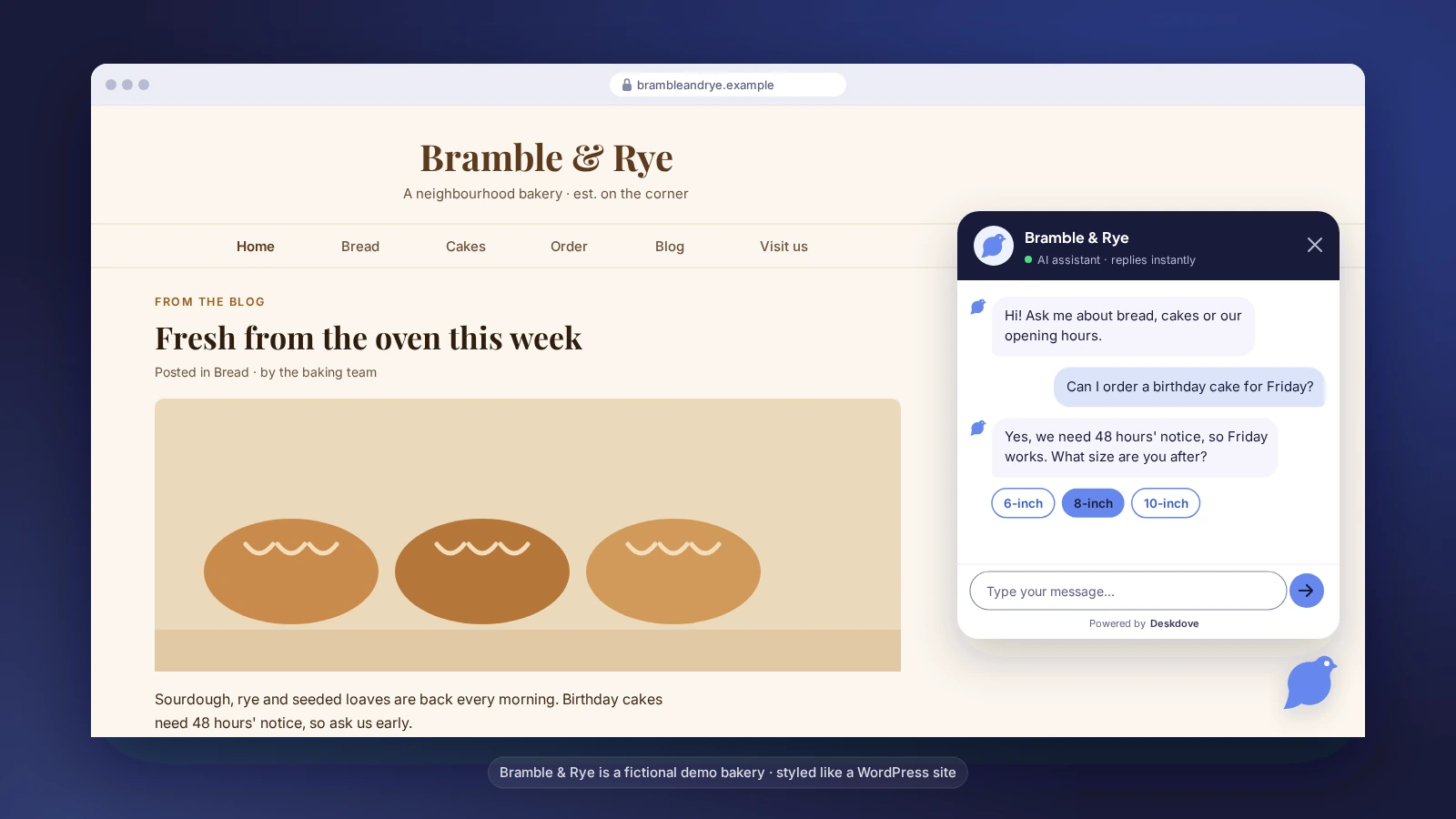
The easiest way is the free WPCode plugin (formerly Insert Headers and Footers). Its Footer box prints your snippet just before </body> on every page, and it stays put when you change or update your theme.
Before you start: Self-hosted WordPress (WordPress.org) can install plugins on any site. On WordPress.com, WordPress.com says installing plugins is available on all paid plans (Personal, Premium, Business and Commerce); free sites need to upgrade.
Install WPCode
In your WordPress admin, go to Plugins > Add New Plugin, search for "WPCode", then click Install Now and Activate.
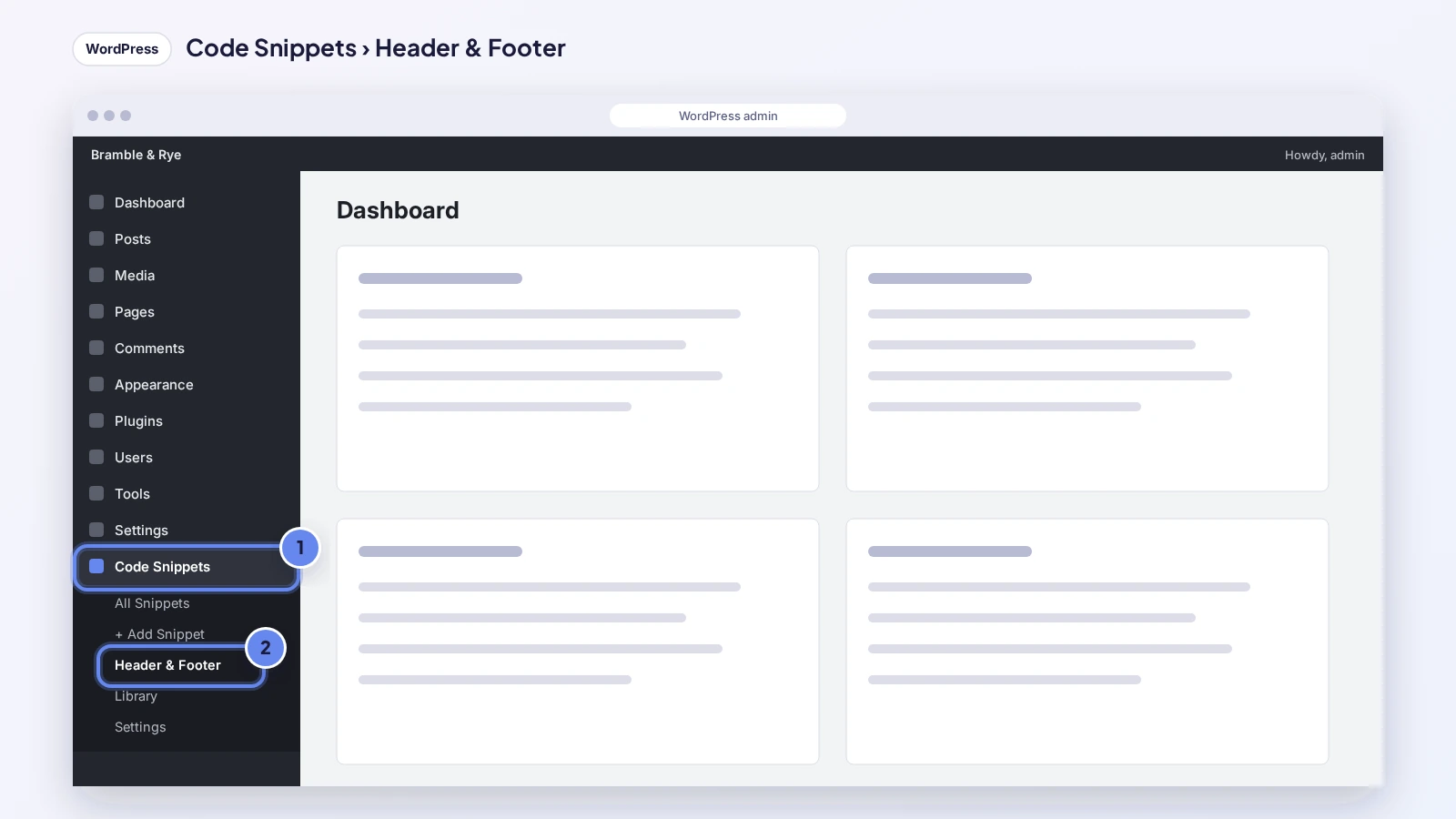
Open Header & Footer
In the admin sidebar, go to Code Snippets > Header & Footer.
Copy your snippet
Copy the one-line snippet below.
<script src="https://deskdove.com/widget.js" data-business="your-business" async></script>This is a placeholder. Sign up free to get your snippet
Paste it in the Footer box
Paste the snippet into the Footer field, exactly as copied, including the <script> tags. Leave Header and Body as they are.
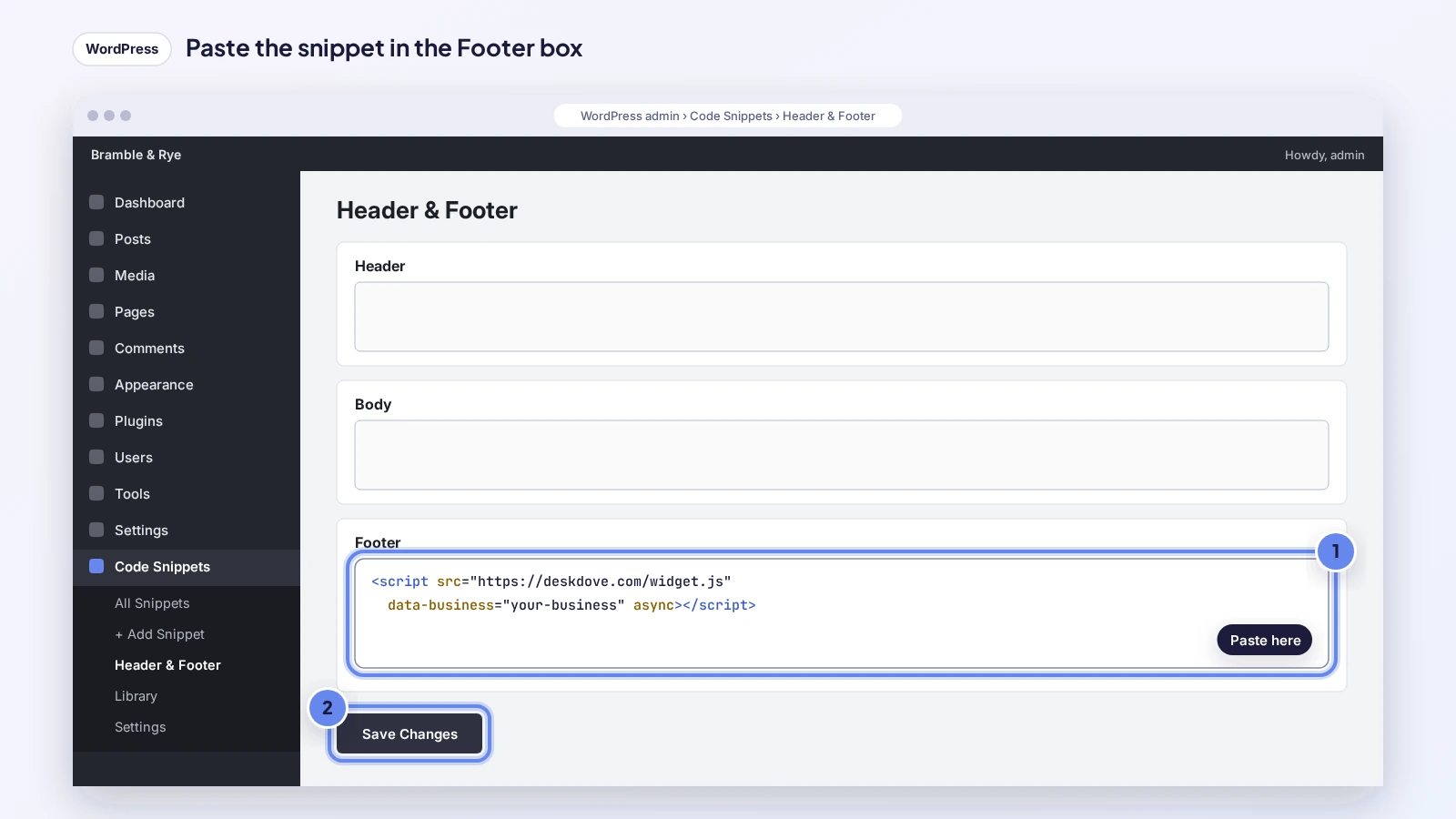
Save
Click Save Changes. If you use a caching plugin, clear its cache so visitors get the new page.
Alternative: edit your theme's footer
- Only for classic themes. In WP Admin, go to Appearance > Theme File Editor, pick your theme and open footer.php (block themes don't have one; use WPCode instead).
- Paste before </body>. Paste the snippet on the line just before </body>, then click Update File. WordPress warns that theme updates overwrite these edits, so a child theme or WPCode is safer.
Check it's working
Open your site in a private window
Use a private or incognito window so you see what a new visitor sees (and no old cache).
Look for the chat button
The chat launcher appears in the bottom corner of the page within a few seconds.
Send a test message
Open the chat and send a message, such as "Hi, this is a test".
See it in your Inbox
Open Inbox in your Deskdove portal. Your test chat shows up there straight away.
Rather we did it? Book a free assisted install and we'll set it up with you on a short call.
Based on WordPress's own help pages: WPCode docs: Using the Global Header & Footer settings · WordPress.org: WPCode – Insert Headers and Footers · WordPress.com Support: Install a plugin · WordPress.org: Appearance Theme File Editor screen. Menus can change; tell us if one has moved.
Get your own snippet
Your portal has a ready-to-paste snippet with your business already filled in, plus these steps.
Sign up free to get your snippet